
Below are instructions on how to opt out of generative AI training tools on various platforms.
Please note: currently in the UK (May 2025) AI scraper/crawler bots are not regulated and can access the majority of your online data, whether or not you’ve opted out of generative AI training. This just stops the creators of these specific platforms from using your content to train Large Language Models (LLMs).
If you want my hot take on why I’m opting out of training generative AI tools, click here.
CONTENTS:
Download a copy here
ADOBE
- Acrobat/Creative Cloud/Reader
- On the web
- Photoshop
In Acrobat or Acrobat Reader
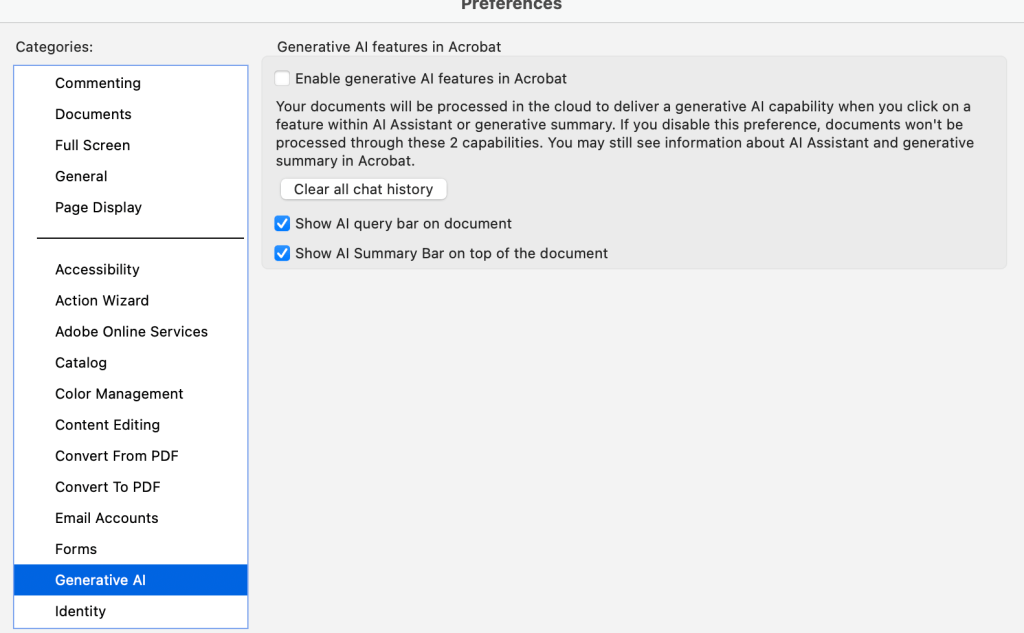
Close any open files. Go to Preferences > Generative AI. Deselect “Enable generative AI features in Acrobat” and select OK.
In Acrobat on the web
Choose your profile, select Settings, and deselect “Enable generative AI features in Acrobat”.
In Photoshop
Go to Edit > Preferences > Product Improvement
Deselect the “I give Adobe permission to use my images and associated data to train Adobe’s generative AI models” option.
APPLE
- iPhone/iPad
- Mac
iPhone and/or iPad
Open the Settings app
Scroll down and tap “Apple Intelligence & Siri”
Toggle off the Apple Intelligence switch
Confirm your choice by tapping “Turn off” in the pop-up window.
Mac
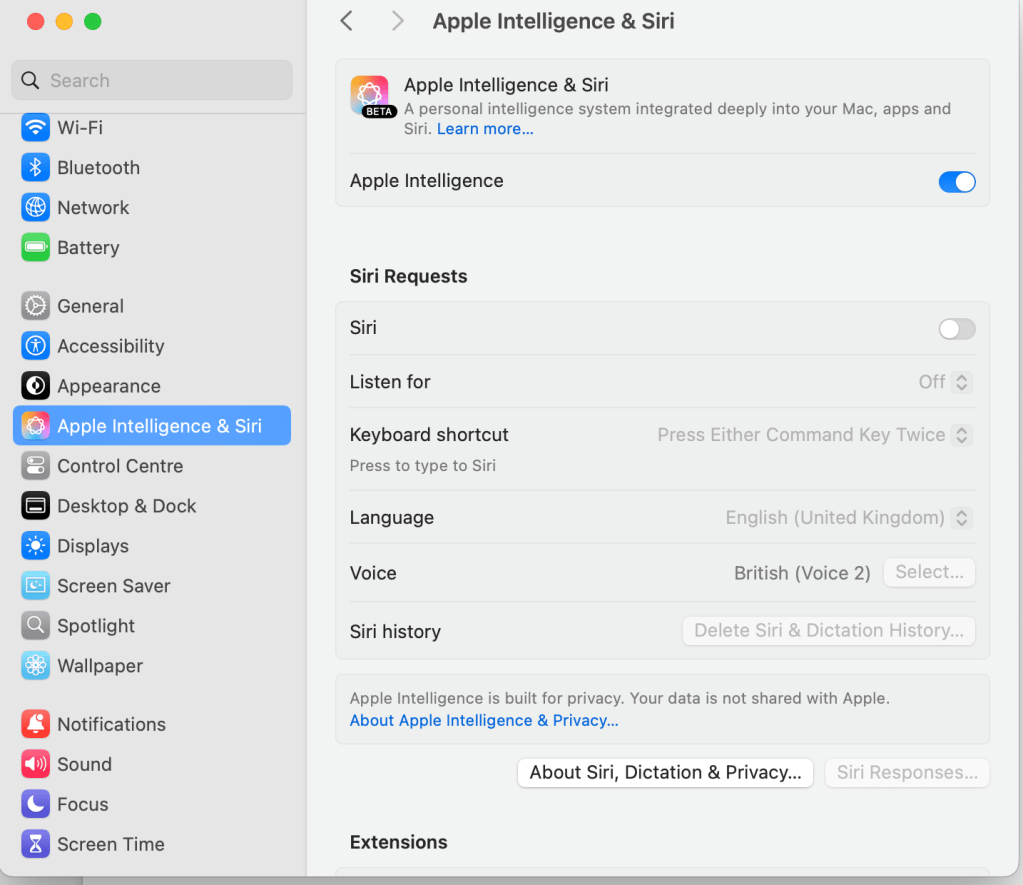
Click the Apple menu in the top-left corner
Select System Settings > Apple Intelligence & Siri
Click the switch next to Apple Intelligence to turn it off
Confirm your choice by clicking “Turn off”.
So I googled it:
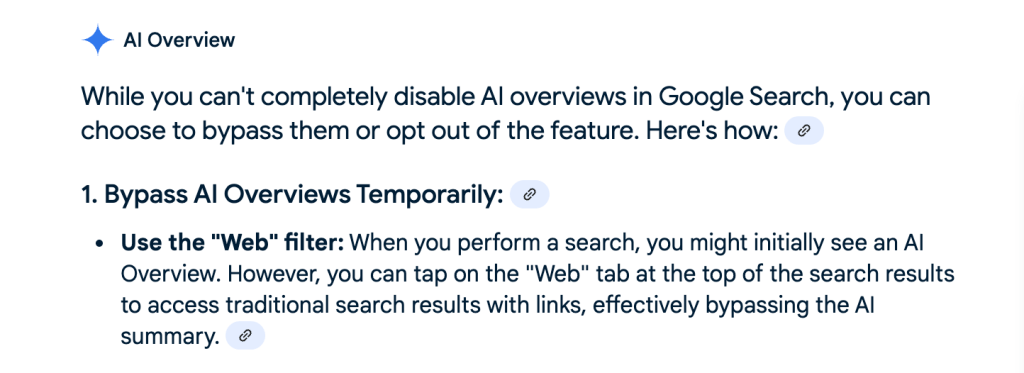
More information available here.
Also, it appears there is an intention for there to be an opt out setting for Gemini, but it is not currently available in the UK. I’ll keep an eye out.

I don’t know why I was so surprised that LinkedIn’s use of generative AI tools is so difficult to opt out of; everything I read on there sounds like it was generated by an evil robot. This article by Wes Davis has some useful instructions, but the particular setting toggle he links to wasn’t relevant for me:
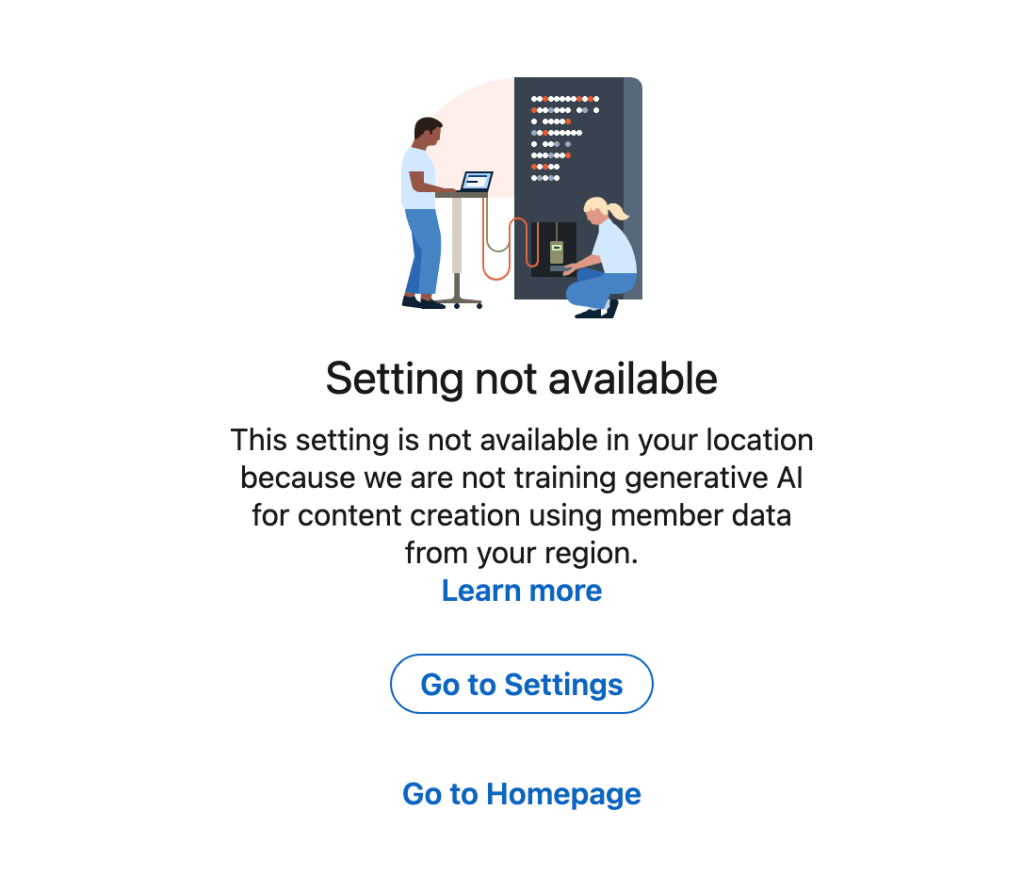
…so I’m just going to have to keep on checking.
I did, however, submit a LinkedIn Data Processing Objection Form.
META
- Facebook, Instagram & Threads
Facebook, Instagram & Threads
Open Facebook or Instagram – Threads is linked to Instagram and privacy settings cover both apps
Settings > Privacy
About > “Privacy Policy”
Go to “AI at Meta” which should include a link to the “Right to object” form.
Fill out the form with your email address, country of residence, and explain how the use of your data impacts you, e.g:
<I am concerned about the implications of generative AI using my personal posts, photos, and interactions without my explicit consent>
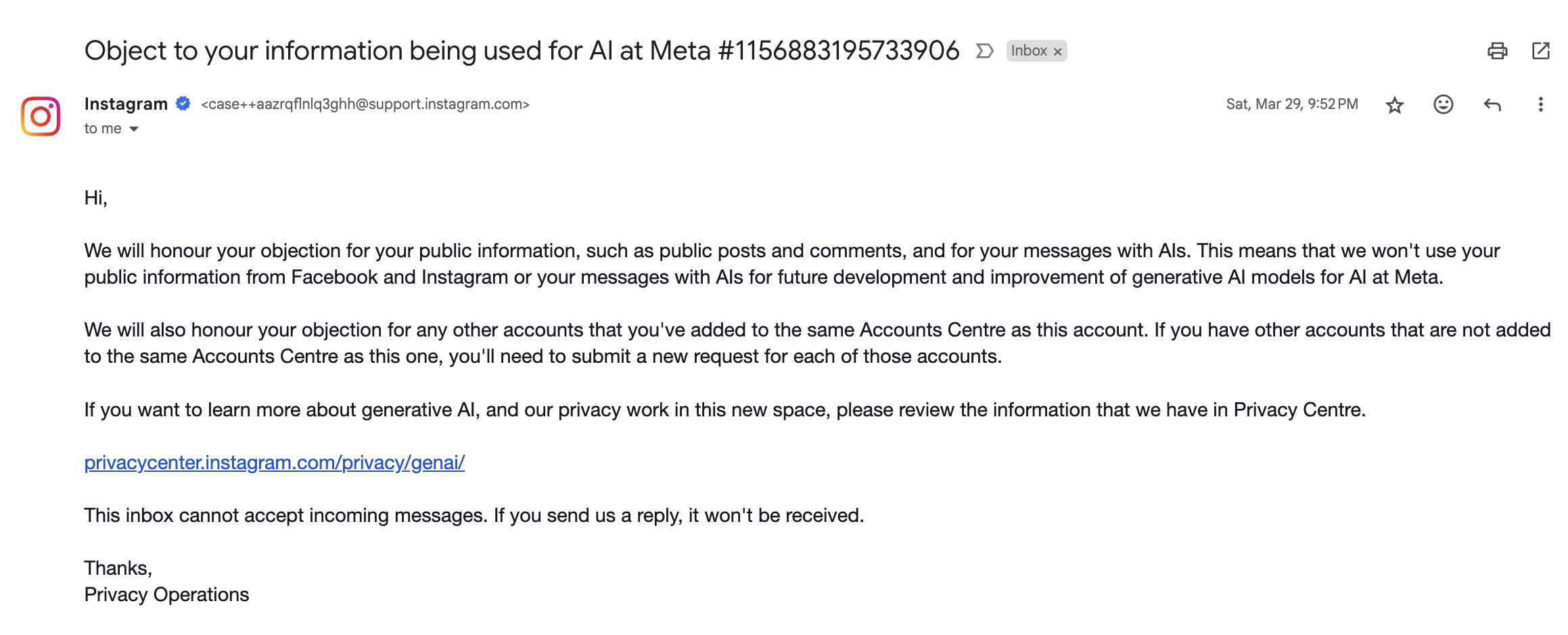
Submit the form to request that your data not be used for AI training: a copy should be sent to the email address linked to your account.
Meta’s policies were one of the hardest to opt out of, but this very useful article by Melissa Heikkilä helped.
I’ll be investigating effective alternative messaging apps, so I’ll keep you posted.
MICROSOFT
- Microsoft 365 personal
- Microsoft 365 at work
- Teams
If you use a Windows operating system, to learn how to disable the Copilot AI software go to the Windows section here.
If you have a personal Microsoft 365 subscription
If you are on a subscription plan for Microsoft 365, go to account.microsoft.com and log in. Then go to Account > Subscriptions
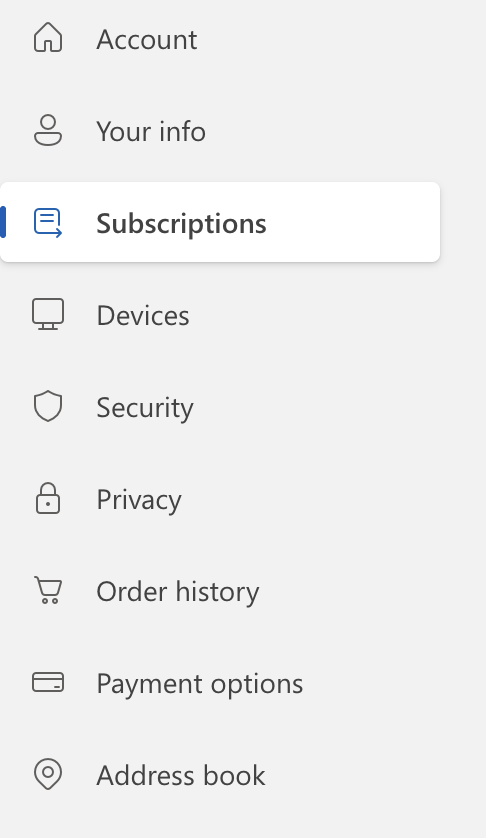
Or click to go straight to the subscriptions page.
Select “Manage”
Select “Cancel subscription”
Look under “Switch to a subscription that’s better for you” and then select “Microsoft 365 Family/Personal Classic”; whichever applies.
Bonus! this will save you money.
If you use Microsoft 365 at work
Open a Microsoft 365 application (like Outlook, Word, Excel, etc.)
Go to File > Account
Under “Account Privacy” select “Manage Settings”
Deselect “Turn on optional connected experiences”
Restart the Microsoft 365 application for the change to take effect.
Note: in Outlook specifically, the Windows generative AI tool “Copilot” is in use.
There is a toggle labelled “Turn on Copilot” or “Enable Copilot” within Outlook settings that you can keep switched off.
Microsoft Teams
Open Microsoft Teams
Click on your profile picture in the top right corner and select “Manage apps”
Find Read AI in the list of installed apps
Click on the three dots icon for “More options” next to Read AI and select “Uninstall.”
Confirm the removal by clicking “Remove”
SAMSUNG GALAXY
This is taken from the Samsung website and is available here.
Some AI features may be integrated into the system and cannot be disabled.
To disable Galaxy AI features:
- Navigate to and open Settings on your phone or tablet.
- Tap Galaxy AI. Depending on your device, you may need to swipe to and tap Advanced features first, then tap Galaxy AI or Advanced Intelligence.
- You’ll see a list of AI features on your device. Tap a sub-menu, such as Call assist, and then turn off the switch next to the feature(s) you want to disable.
Some AI features can be turned off directly in the settings of individual apps, such as the Phone app, Notes app, Camera app, Gallery app, Samsung Messages app, Samsung Health app, or SmartThings app. To disable these features, go to the app, access the app’s settings, and then turn off the switch for the AI feature you want to disable.
Be sure to restart your device after disabling AI features to ensure the changes take effect.
SNAPCHAT
Swipe right from the Camera > Chat
Press and hold on “My AI”
Tap “Chat Settings”
Tap “Clear from Chat Feed”
SUBSTACK
To disable AI bots from using your published Substack content as part of a training model, head to your publication’s Settings page.
Scroll to the Privacy section and slide the toggle to the right next to “Block AI training.”
WINDOWS
Disabling generative AI tools completely is more complex, this Reddit thread seems to be helpful, but I don’t use Windows so can’t confirm.
But to turn off Copilot:
Settings > Personalization > Taskbar > “Turn off Copilot”.
WORDPRESS
Depressingly, to activate plug-ins that would prevent AI scraping or crawler bots, you need to have a “Business” subscription. That linked plug-in has good reviews so if you’re on a Business account I say go for it, but for me that is £302.40 I simply do not have.
I also don’t have the option to toggle off AI prompts, which means whenever I write on here I get prompts to use AI.
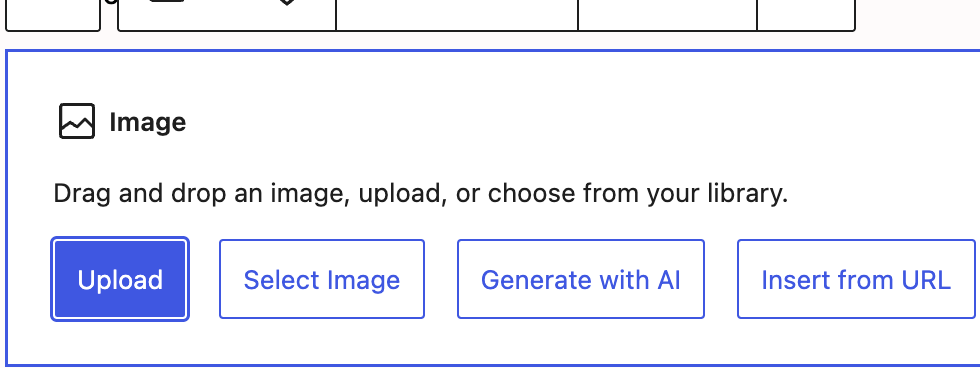
To stop WordPress itself using your data for generative AI tools:
Log in to your WordPress.com dashboard and navigate to “Settings”
“Privacy” section within General Settings
Toggle “Prevent third-party data sharing” which will prevent your public content from being shared with WordPress.com’s network of partners.
ZOOM
Go to the Zoom web portal and log in
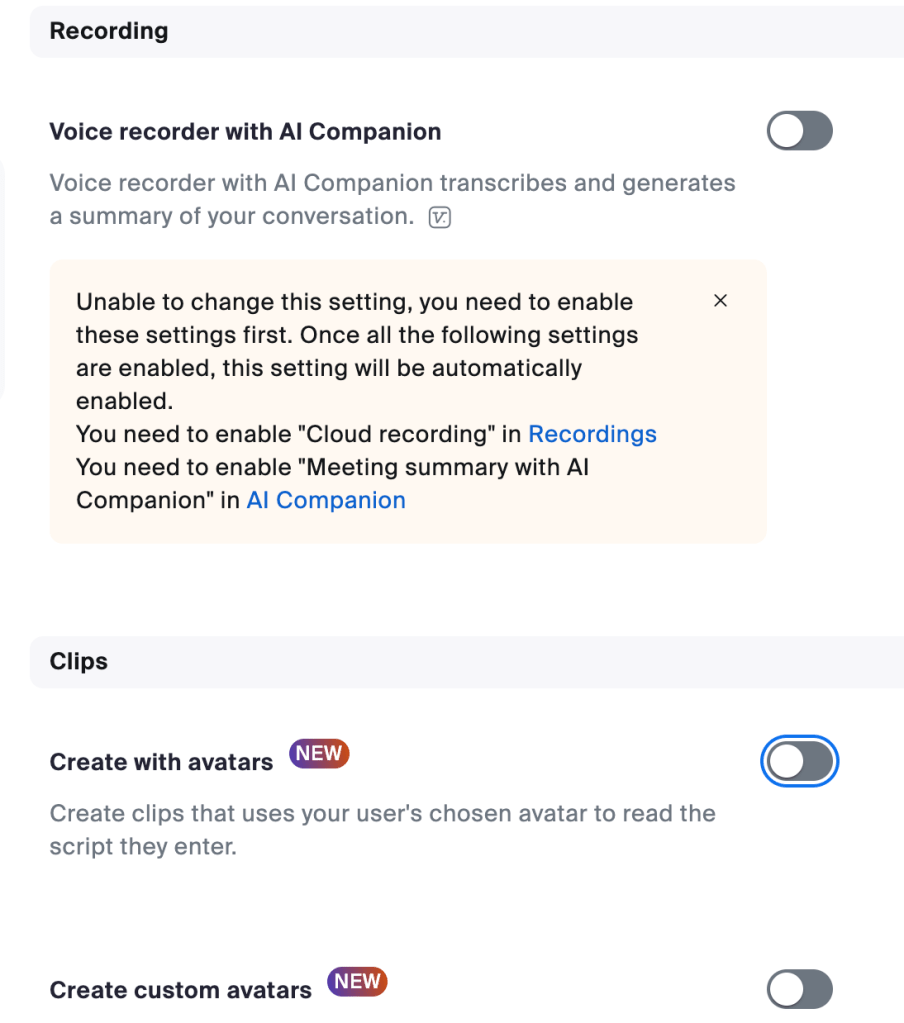
My Account > Settings > “AI Companion”
Toggle off all options.
Guides last updated 21st May 2025


 Ruby Allen-Cadman
Leave a reply to Please help me understand the purpose of generative AI – Ruby Allen-Cadman Cancel reply